Share
Showing posts with label Blogger. Show all posts
Add Sitemap to Blogger
The Sitemap XML file is just like a directory of your blog's pages. As you know your blog is always getting crawled by search engines but sometimes it does miss to crawl some of your pages. If you use XML Sitemap for your blog then the missing chances of crawling almost gets zero. So, it is better if you have a Sitemap for your blog. Follow the below mentioned steps to add Sitemap to your blog.

Steps:

1. Go to Sitemap Generator site to generate your blog's Sitemap.

2. Enter your blog's URL in the empty box and press on Generate Sitemap button.

3. It will then automatically generate your blog's sitemap like this-
Generated Sitemap

4. Copy the whole XML file and go to Blogger's settings page.

5. Click on Search preferences and edit the Custom robots.txt as shown below( paste your copied XML file in the box) and save it.

Custom robots.txt


6. You are done.
Rollover image effect means the image will change upon the sense of touch on it. If you give this effect to any image on your blog then the image will change on mouseover. You can give this kinds of effect anywhere in your blog. You can apply this to your social icons on your blog or in any image inside your blog post like this( place your mouse cursor on the image to see demo effect)-

Facebook rollover icon

Steps:

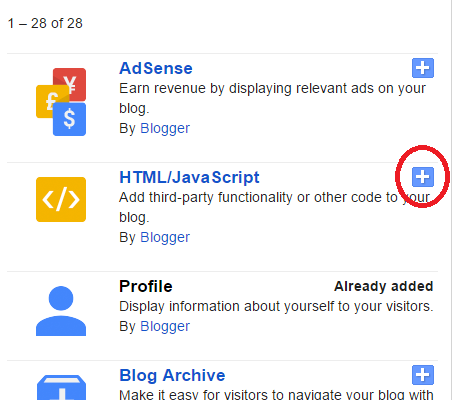
1. If you want to add this type of image effect on the sidebar of your blog then go the Layout page of your blog and add  a HTML/JavaScript gadget.

2. Paste the following codes in the gadget after editing the necessary portions. You can also resize your image according to your sweet will.
<a href="Your page/Target URL"><img src="URL OF THE FIRST IMAGE" onmouseover="this.src='URL OF THE SECOND IMAGE'" onmouseout="this.src='URL OF THE FIRST IMAGE'" width="200" height="200"/></a>

For example: 
<a href="https://web.facebook.com/techknowledgeblog"><img src="https://blogger.googleusercontent.com/img/b/R29vZ2xl/AVvXsEgaBnFEkmInM4mJ5nURmS7b6moKPa16i_d_HBpPTauorWu04n7nnxsWC6Aeb0ihAYk6mZ4V9yERRPaFWkRKXeEh2hQrh6cZTlEaF6c8BhOIUD6RIpzXftKg5Ig8a4JuQj_-aDi8LcwatSg/s1600/facebookLogo1.png" onmouseover="this.src='https://blogger.googleusercontent.com/img/b/R29vZ2xl/AVvXsEhzRNKAFU446JqfYOXhvwlObXJDdEC99953eX_vy7fRY2CT3bOaPk8xEtxAOLptd2q_bUKlWXXpxZ-EpCa8qUBUCW7wTuY6O9kZVmh1XV8BDGHpPWY-jtn-h5WKG03JI6LNl5zxuTWfOy0/s1600/facebookLogo2.png'" onmouseout="this.src='https://blogger.googleusercontent.com/img/b/R29vZ2xl/AVvXsEgaBnFEkmInM4mJ5nURmS7b6moKPa16i_d_HBpPTauorWu04n7nnxsWC6Aeb0ihAYk6mZ4V9yERRPaFWkRKXeEh2hQrh6cZTlEaF6c8BhOIUD6RIpzXftKg5Ig8a4JuQj_-aDi8LcwatSg/s1600/facebookLogo1.png'" width="200" height="200"/></a>

3. Save your gadget. You are done. 

Notice:
If you want to add this image effect inside your blog post then put the codes in the HTML section.


Add Multiple Widget on Blogger Header
If your template doesn't support you to add multiple widget on Blogger header then you can follow the steps to enable multiple widget support on Blogger header.

Enable HTTPS in Blogger
Recently Google has rolled out first version of  HTTPS support for Blogspot. This is a security function which makes information of blog authors and visitors secure from getting stolen or tracked by bad actors. It also helps visitors to land on the correct website and aren't getting redirected to malicious website. There is a noticeable thing that is HTTPS support is only available for Blogspot domains like example.blogspot.com. So, if you are willing to enable HTTPS in your blog then follow the steps-

Steps:

1.a) At first go to your dashboard and select the blog in which you want to enable HTTPS. 

1.b) Then press on Settings.
Press on Settings

2. In the General settings page select Yes from HTTPS Settings option. You are done.
Press on Yes
 Add Social Media Icon in Blogger Sidebar
If you want to connect with people by using social media icons in your blog then this post might be helpful for you. There are lots of customized social media icons are available online. You can collect those icons for free. Upload the icons on Flickr or in some social media like this to collect your icon url. Now, you have to follow some few steps to add social media icons to your blogger sidebar which I have shown below.
                                                        Follow us on Facebook!Follow us on Twitter!Follow us on Youtube!Follow us on rss!

Steps:

1. At first go to your Blogger's Layout page.

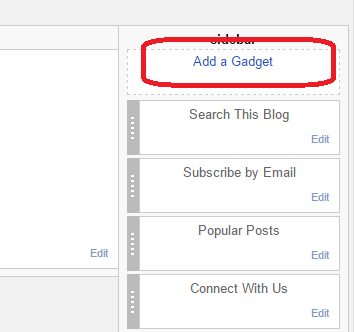
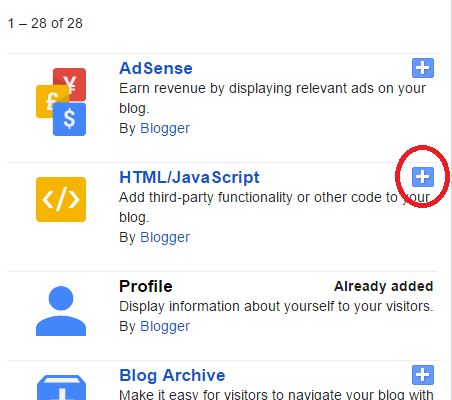
2. Click on Add a Gadget and add HTML/JavaScript gadget.

Add a GadgetHTML/JavaScript Gadget


3. Now paste the following codes inside that gadget-
<a href="YOUR SOCIAL SITE URL"><img alt="Follow us on Facebook!" height="72" src="YOUR SOCIAL ICON IMAGE LINK" width="72" /></a>

For example-
<a href="https://web.facebook.com/techknowledgeblog"><img alt="Follow us on Facebook!" src="https://blogger.googleusercontent.com/img/b/R29vZ2xl/AVvXsEhnvfVSkbNnlm2msWxx-hA_APMmfa0aUN3Psgv2w1hdRPrtLpAiKmRmeA3RIRIcRHGVm6FWzWU35qKzlkLQLpJAA2xTdzjv2OJNnl0rrgL4zjyPzxst6wpEwtYMQPKjCCWQrkdC5hFkQgw/s1600/facebook.png" width="72" height="72" /></a>

4. If you wish to keep icons side by side then place the codes side by side I mean paste your new code just after </a>. For example-
<a href="YOUR SOCIAL SITE URL"><img alt="Follow us on Facebook!" height="72" src="YOUR SOCIAL ICON IMAGE LINK" width="72" /></a><a href="YOUR SOCIAL SITE URL"><img alt="Follow us on Twitter!" height="72" src="YOUR SOCIAL ICON IMAGE LINK" width="72" /></a>

5. Now save the gadget and you are ready to show your icons.
Facebook Like Box

Follow a few simple steps to create Facebook like box for your blog.

Steps:

1. At first collect your Facebook page URL. Copy your Page link from the URL bar.

2. Visit this link to create your Facebook like box- https://developers.facebook.com/docs/plugins/page-plugin 

3. Paste your Facebook page link in the Facebook Page URL section, and edit Width and Height according to your demand.
Paste your Facebook page link


4. Press on the button 'Get Code'.

5. Copy codes from the upper box and go to the Edit HTML of your blog and paste codes right after the opening <body> tag.
Copy codes from the upper box


6. Copy codes from the bottom box and go to your Blog's Layout page and press on 'Add a Gadget'.
Copy codes from the bottom box
Add a Gadget


7. Add 'HTML/JavaScript' gadget.
Add HTML


8. Now paste the code inside that gadget and save it. You are done.
Past code and save


Embed Presentation Slides in a Blog
I have shown the procedure of embedding presentation slides in a Blog below. Follow the steps that I have shown in the 1:10 minutes video tutorial, I hope you will also be able to embed slides in your blog.
Contact Form
A good blog should have a Contact Us option in it so that readers can contact with the owner of the blog. This option helps to tighten the relationship between the blog and its reader. If you are blogging in Blogger then you might face a challenge to add a nice looking Contact Us form in blog. Blogger has a Contact widget but that doesn't look better, and you can't customize that. So, I am going to show you how to create a Contact Us form in Blogger with customizing option by the help of Google Form. From my point of view Google form is safe and secure. You can also use other 3rd party form in your blog. I have shown here how to create Google form. Just follow my steps and you will be able to create a Contact Us form.
Add HTML Meta Tag in Blogger
Meta tags are very important for any blog or website. Google bots read Meta tags and send information to Google search engine to show your website in Search Engine's result page. Follow the steps below to add Meta tags in your blog-
Add Facebook Popup Like Box Widget to Blogger
It is always a very good practice to link Facebook page to your blog. If you have a Facebook page which talks as similar as your blog does then you may want to let your blog readers know that you have a Facebook page regarding the topic of this blog by adding Facebook Popup Like Box Widget. It will not only help you to raise the followers of your Facebook page but it also will help you to convey your message to the vast number of people. I have shown you here how to add this Facebook like widget, just follow my steps and you will be successful to add this widget in your blog.
Sample code box

Steps to add code box in blogger:

  • Go to the Dashboard of your blog and select Template.
  •  Click on Customize.
    Customize
  • From the new window select Advanced and click on Add CSS.
  • Copy-Paste the below codes in the CSS empty box and apply to the blog.
Tab

Create Tab/Page in Blogger:

If you are looking for a way to create tab in your blog then I believe that this video tutorial will help you. If you face any problem, or if you have any suggestion then please feel free to let me know leaving comments or contacting with me.
Thanks for visiting my blog. 

 Remove Loading Gear :


Loading gear
If you are blogging in Blogger and using its Dynamic theme then you may experience that it always shows a Loading Gear whenever it gets load. It is sometimes disturbing. So if you want to eradicate this problem then just follow the below steps-


1. At first go to the Dashboard of your Blog and and then in the left side you will find an option saying Template.

2. Now click on Template and there you will find a Customize option beside Edit HTML button.

3. Click on Customize and after clicking on that in the left side you will find an option saying Advanced, click on that option.

4. Now you should get an option saying Add CSS, click on that.

5. Now an empty box should appear in the right side. In this box copy paste the following codes and Press enter button after the last character of the last line ie, } .
–Now, Apply it to your Blog.


.ss,.blogger-gear{
display: none;
}


Remove Dynamic View Options :


 >>>>  If you want to remove Dynamic Blogger view options like this  >>>>


In the same way as I have shown in the removal of loading gear part, at first go to the Dashboard of your Blog and and then in the left side you will find an option saying Template. Now click on Template and there you will find a Customize option beside Edit HTML button. Click on Customize and after clicking on that in the left side you will find an option saying Advanced, click on that. Now you should get an option saying Add CSS, click on that. Now an empty box should appear in the right side. In this box copy paste the following codes and Press enter button after the last character of the last line ie, } .
–Now, Apply it to your Blog.

#views{
display: none !important;
}

#header #pages, #header #pages:before{
border-left: 0px !important;
}