Share
Showing posts with label Windows. Show all posts
If you are using windows PC and if you want to create Wi-Fi hotspot in your PC then hopefully this tutorial will be helpful for you. Just follow the steps that I have shown below to create a hotspot network.
Create WIFI Hotspot Using CMD in Windows PC

Step 01:
Open CMD( Command Prompt) in administrator mode.

Step 02:
Inside the command prompt type- netsh wlan show drivers and press enter to check whether you have necessary drivers in your PC to create hotspot. If it shows- Hosted network supported: Yes then you are ready to go.

Step 03:
Type in the CMD the following command and press enter.
netsh wlan set hostednetwork mode=allow ssid=HotspotName key=Password

Notice: In this command just change the ssid and key value ie, name your hotspot and give a tight password.

You are done here creating a Wi-Fi hotspot environment. Now to start and stop the hotspot follow the below steps-

#Start Hotspot: Open CMD in administrator mode and type-
netsh wlan start hostednetwork

#Stop Hotspot: Open CMD in administrator mode and type-
 netsh wlan stop hostednetwork

If you want to save your time from writing CMD commands again and again then create a CMD command .bat file on your Desktop and run that when it is necessary. Write the below codes in your .bat file and execute on demand-
C:\Windows\System32\cmd.exe /c Your_Command
Example: C:\Windows\System32\cmd.exe /c netsh wlan start hostednetwork

If you don't know how to create .bat file then visit this link.


Port80
The way to open Port 80 in windows PC has been shown below. Follow the steps to open Port 80. 
Auto Shutdown PC
It is very obvious that sometimes we need to auto shutdown our pc. If you are looking for an easy solution to do this then follow my steps. I have shown here a very few steps to do it. This process won't take more than 2-3minutes. I think it will work on your computer.
Windows Tutorial
Command Prompt Shortcut Creation:
I have embedded here a very easy tutorial to create desktop shortcut of Command Prompt for windows PC. Watch the tutorial and learn it within a minute.
Best of luck !
Windows Icon
Desktop Shortcut of Command Prompt Commands:

 If you want to create a shortcut for your specific command that you always have use then follow the steps I've shown in this video tutorial. Just the two things I want to mention here, one is write-  C:\Windows\System32\cmd.exe /c YOUR COMMAND in the text file and rename the final file extension .txt to .bat


USB Device Not Recognized in Windows

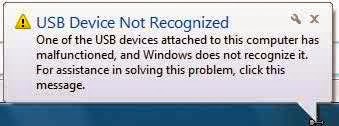
Fix: USB Device Not Recognized In Windows !
 
Sometimes it happens that when we insert or connect any USB device to our PC it shows – ‘USB  Device Not Recognized’. There is nothing to be worried about this problem. There are some solutions to solve this problem. Steps to solve problem-


METHOD 1:
Step 1: Open RUN (Windows key +R) and type ‘devmgmt.msc’ and click OK.
Step 2: Now expand Universal Serial Bus Controllers.
Step 3: Attach your device which is not recognized.
Step 4: There you will see an Unknown USB Device (Port Reset Failed) with Yellow Sign in Universal Serial Bus Controllers.
Step 5: Now Right click on Unknown USB Device (Port Reset Failed) and click Uninstall to remove it.
Step 6: Now Restart your PC and Reinstall the USB drivers again.
If these steps doesn’t  solve your problem then follow METHOD 2.


METHOD 2:
Step 1: Remove your Power Supply plug from PC.
Step 2: Now Restart your PC.
Step 3: Now again connect your USB device.
Step 4: After the USB device connected to your PC , then plug in your Power Supply to PC. That’s it.

Wish you best of luck ! :)
If USB flash drive dosen't get formated

We have to use Pen drive for several purposes in our daily life. If Pen drive got affected by virus then sometimes it becomes so difficult to format it. In this situation we have to find out an alternate way to format it. If you can't format Pen drive in general way then press on "Windows Key + R" to open your RUN window, then write "cmd" and press ENTER. Now you will see a command prompt , there you write "format M" then press ENTER twice. This process sometimes takes longer time to execute but it is effective. You can also format your Pen drive from control panel. In the control panel click twice on "Administrative Tools" and then you will see "Computer Management",  click on that twice. Now you should see a option saying "Management" in the left, click on that option. Now in the right side you should see the list of your every drive including Pen drive. Give a right click on Pen drive and then format. I think these processes will help you to successfully format your Pen drive for safe uses. 
Steps to solve windows  apps update and download problem:
Cancel the current installation from store>  Go to Desktop>  Go to charms bar> 
Click on Settings>  Click on Control Panel>  Click on Troubleshooter>
Click on Fix Problems With Windows Update under "System and Security">
In the new window click on Next> Click on Try troubleshooting as an administrator>
Close the troubleshooter>  Re-open your store and Install.
BEST OF LUCK !
See video tutorial  here-

Use Your USB Pen Drive as RAM in Windows PC

How to use USB pen drive as RAM in Windows Vista and Windows 7  :

Steps:

1. Insert your pen drive and format it. 
2. Right click on your pen drive and click on properties.
3. Now click on Ready boost tab and then Use this device.
4. Choose maximum space to reserve system speed then click on OK and Apply.